
Yasu for Mac
If you’ve landed on this page, you’re either a long-time Yasu user (👋🏻 hello again!), or you’ve heard about Yasu from someone who used to be a Yasu user themselves. Regardless of the reason, I’m honored that my little app was interesting enough for you to look for it.
If you were hoping to download the latest version for your old Mac, they’re still available on the Yasu for Mac website. I’ll elaborate on that in a bit.
The History
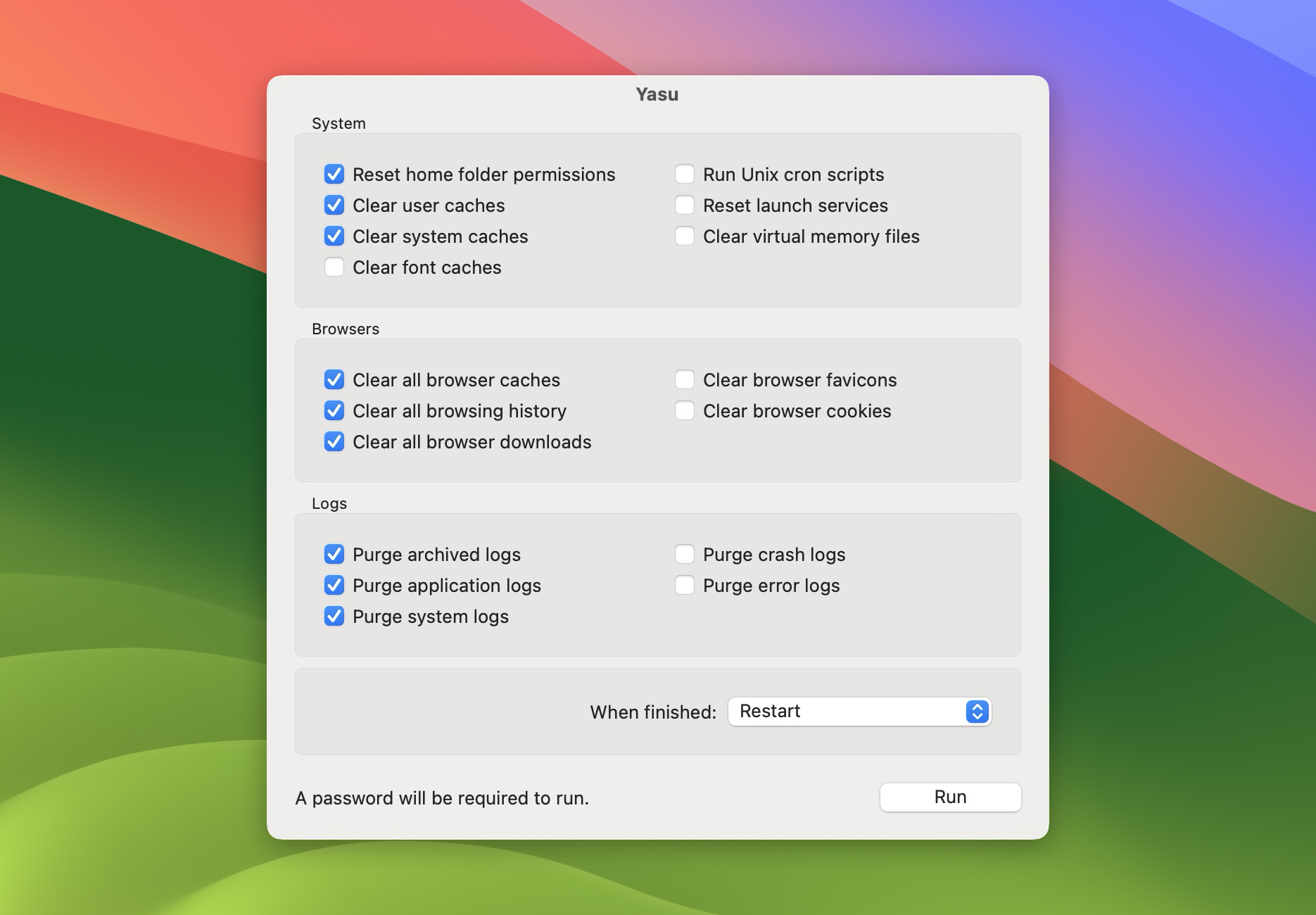
I first created Yasu (short for “Yet another system utility”) in early 2001 as an answer to Cocktail moving to a shareware model. I thought I’d be able to make something just as useful, so challenged myself to build a Mac maintenance utility app.
That very first version was really ugly, but it laid the groundwork for something that eventually grew into a successful app for the next 15+ years.
I eventually took Yasu to a shareware model myself. I was blown away people were actually asking if they could give me money for my hobby project. I didn’t get rich from it, but I was able to use what I earned to pay for hosting and other costs related to maintaining the app.
It also lead to speaking gigs at Mac User Groups and a couple small local Mac conferences. The app was even featured in print magazines a few times. I still have my cherished copy of MacWorld that has a write up on Yasu. When this issue dropped, I considered myself pretty lucky and thought I’d made the big time.
But, times change, and as Mac OS became macOS it became harder to maintain the app thanks to Apple moving to a sandboxed operating system. Where it was once easy to issue Unix commands to clean a system level cache became a total obstacle. There were more and more roadblocks to overcome to keep the app alive.
This led me to turn the app over to another developer in 2017 who promised me he would keep it going. But sadly, that’s not what ended up happening. He updated it a time or two and then just let it sit for the years since, doing nothing. He won’t even respond to my emails anymore.
I think the existing binaries may still be usable on older Macs. To be honest, I haven’t tried them lately myself. Give it a shot and let me know if you do.
If you’re lucky enough, you may find the site is up today.
The Future
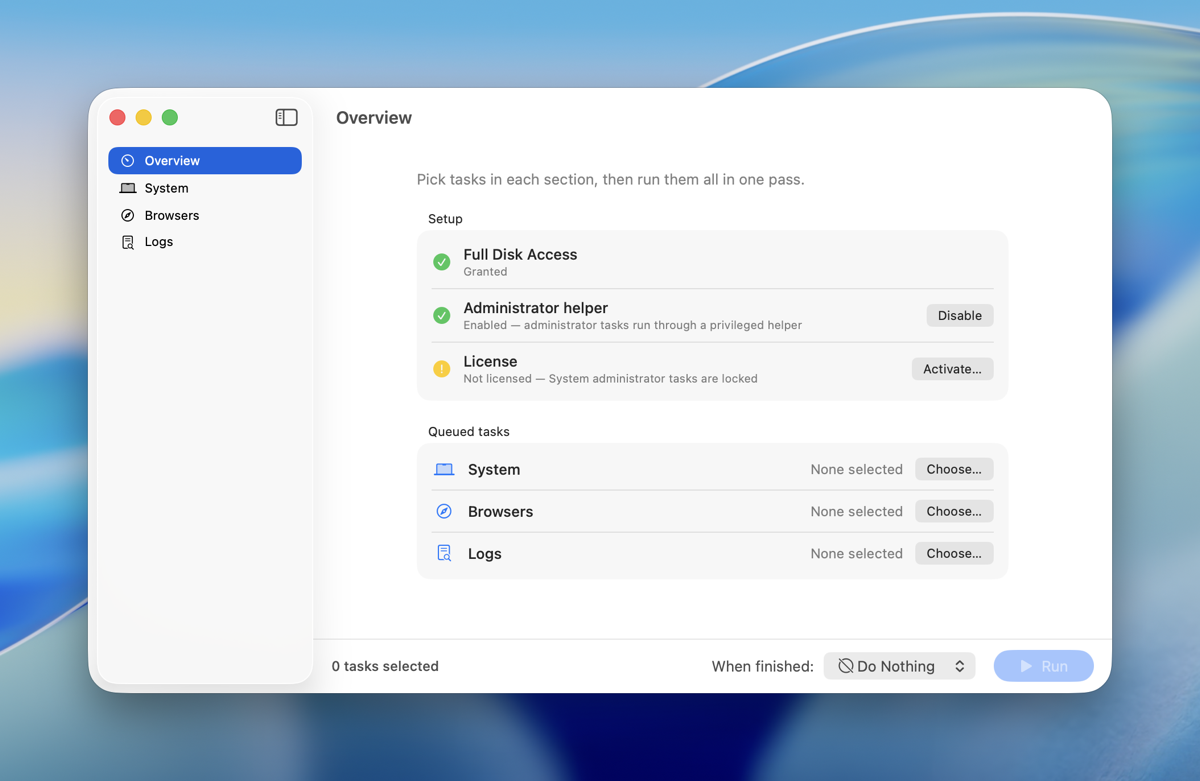
I’ve often pondered, and occasionally even teased, the notion of resurrecting Yasu after transferring the app to the other developer.
For years, I believed Yasu had reached its zenith and that it was time to allow it to fade into the annals of Mac history as one of those cool little apps that once stood out.
However, circumstances change, so there will indeed be a new version of Yasu! It’s already in the works and will be a complete overhaul of the old version, as evident from the screenshot above.