
OmniFocus Task Sync
Send uncompleted tasks from the active Obsidian note to your OmniFocus inbox, then mark them complete in Obsidian.
Each task forwarded to OmniFocus includes a link back to its source note in Obsidian, so you can jump from OmniFocus straight to the relevant context.
Features
Four commands for different inbox-zero workflows:
- Send uncompleted tasks to OmniFocus — scans the active note and forwards every
- [ ]to OmniFocus. - Send task at cursor to OmniFocus — sends just the task containing the cursor.
- Send selected tasks to OmniFocus — sends only the tasks within the editor selection.
- Mark all tasks complete (without sending) — checks off every
- [ ]in the note without forwarding to OmniFocus.
Nested checkboxes are folded into the parent task’s note body, preserving the structure you wrote in Obsidian. Optional Preserve task hierarchy setting recreates the nesting as real OmniFocus subtasks (requires OmniAutomation or Plug-in send mode on macOS).
Inline Dataview-style fields on the task line are mapped to OmniFocus fields:
[due:: 2026-05-10]→ due date (also accepts natural language liketoday 1pm,tomorrow 9am,fri 3pm,next monday,in 3 days)[defer:: 2026-05-05](orstart::/scheduled::) → defer date (same natural-language phrases supported)[flag:: true](or a 🚩 on the line) → flag[estimate:: 30m](or1h,1h30m,90) → time estimate in minutes
Tag configuration:
- Set a default list of OmniFocus tags in settings.
- Override per-note with a YAML frontmatter key (default:
omnifocus_tags). - Optionally forward inline
#tagswritten on the task line.
Destination:
- Sends to OmniFocus inbox by default.
- Optional default project in settings; per-note override via frontmatter (default key:
omnifocus_project).
After successful send, the original task line is changed from - [ ] to - [x].
Requirements
- OmniFocus 3 or later, installed on the device running Obsidian (uses the
omnifocus://URL scheme). - Works on macOS and iOS/iPadOS where OmniFocus is available.
Usage
- Open a note that contains some
- [ ]checkboxes. - Run Send uncompleted tasks to OmniFocus from the command palette (or bind a hotkey to it).
- OmniFocus opens and creates one task per top-level uncompleted checkbox; the boxes are marked complete in Obsidian.
Frontmatter overrides
---
omnifocus_tags: [@work, @errand]
omnifocus_project: Apartment Hunt
---
Example task line
- [ ] Email landlord about lease renewal [due:: 2026-05-15] [flag:: true] #apartment
When sent, this becomes an OmniFocus task with title “Email landlord about lease renewal”, a due date of 2026-05-15, the flag set, and (if “Forward inline #tags” is enabled) the tag apartment — plus whatever default/frontmatter tags you’ve configured.
Nested tasks
- [ ] Plan trip
  - [ ] Book flight
  - [ ] Reserve hotel
  Notes: looking at June 12–18
By default, this sends a single OmniFocus task Plan trip with the nested lines as the OmniFocus note body. All four checkboxes in this block are marked complete in Obsidian after the send.
With Preserve task hierarchy enabled and a hierarchy-capable send mode (OmniAutomation or Plug-in on macOS), the same markdown produces three OmniFocus tasks: Plan trip as the parent with Book flight and Reserve hotel as real subtasks underneath. The free-text Notes: line stays attached to the parent’s note. In URL scheme mode, hierarchy preservation is not possible, so the plugin falls back to the body-folding behavior and shows a Notice explaining why.
Settings
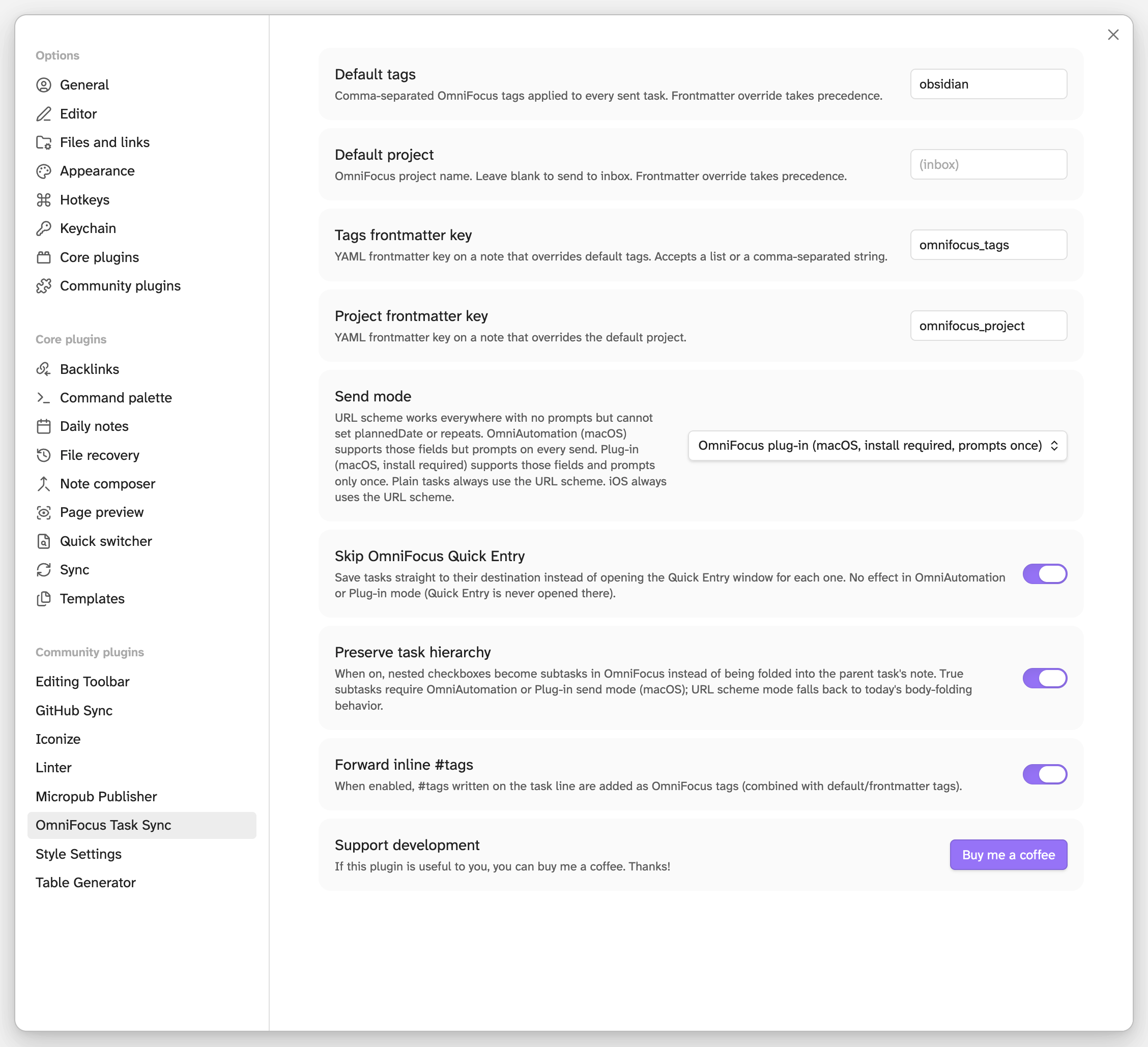
| Setting | Default | Notes |
|---|---|---|
| Default tags | (empty) | Comma-separated. Applied to every task unless frontmatter overrides. |
| Default project | (empty = inbox) | Frontmatter overrides per-note. |
| Tags frontmatter key | omnifocus_tags |
YAML key on a note that overrides the default tag list. |
| Project frontmatter key | omnifocus_project |
YAML key on a note that overrides the default project. |
Forward inline #tags |
off | When on, #tags written on a task line are appended to the OmniFocus tag list. |
| Skip OmniFocus Quick Entry | off | When on, tasks are saved straight to their destination via autosave=true instead of opening the Quick Entry window. |
| Preserve task hierarchy | off | When on, nested checkboxes become real OmniFocus subtasks (in OmniAutomation or Plug-in send mode). URL scheme mode falls back to today’s body-folding with a Notice. |
Send modes
Three modes are available in settings. The default (URL scheme) works everywhere with no security prompts but cannot set plannedDate or repeating rules. Tasks that need those fields are routed through OmniAutomation per-task; plain tasks always use the URL scheme.
| Mode | Platform | Prompts | plannedDate / repeat |
|---|---|---|---|
| URL scheme (default) | macOS, iOS, iPadOS | Never | Skipped (Notice lists what was dropped) |
| OmniAutomation | macOS only | Every send of a task with planned/repeat |
Supported |
| OmniFocus plug-in | macOS only | Once per script approval | Supported |
OmniFocus plug-in mode
The plug-in mode ships a small companion plug-in that lives inside OmniFocus. Approval is keyed to a fixed bootstrap script, so you approve it once and subsequent sends run silently.
One-time setup:
- Enable external scripts. In OmniFocus, choose Automation → Configure… from the menu bar and turn on Accept scripts from external applications.
- Install the plug-in. Open the plug-ins folder via Automation → Plug-Ins… → Reveal Plug-Ins Folder, then drop
omnifocus-plugin/tasks-to-omnifocus.omnifocusjsfrom this repo into it. (If you use the iCloud-synced folder, the plug-in syncs to other Macs — though the plug-in send mode itself is macOS-only.) - Switch send mode. In the Obsidian plugin’s settings, set Send mode to OmniFocus plug-in.
- Approve once. Send a task with a
planned::orrepeat::field. OmniFocus shows its security prompt for the bootstrap script — scroll to the bottom and click Approve. Future sends with planned/repeat run silently.
If a future plugin update changes the bootstrap script, OmniFocus will prompt for re-approval the next time it runs.
Bad input
If a Dataview field on a task can’t be parsed (for example, [due:: sometime soon]), the field is dropped and the task is sent without it. A Notice lists what was skipped so you can fix it.
Installation
This plugin is not (yet) in the Obsidian Community Plugins directory, so install it manually using one of the methods below.
- Disable the old plugin in Settings → Community plugins and remove
<vault>/.obsidian/plugins/obsidian-to-omnifocus/. - Follow the install steps below to set up
tasks-to-omnifocus. - If you use the OmniFocus plug-in send mode, replace
obsidian-to-omnifocus.omnifocusjsin your OmniFocus plug-ins folder with the newtasks-to-omnifocus.omnifocusjsand re-approve it on first send.
Upgrading to 0.6.x with plug-in send mode? Drop the new tasks-to-omnifocus.omnifocusjs (version 1.1) into your OmniFocus plug-ins folder, replacing the older copy. The bootstrap script is unchanged, so no re-approval is needed; the new bundle adds support for nested subtasks when Preserve task hierarchy is enabled.
Sideload from source (recommended for now)
This builds the plugin from the latest commit on main and symlinks it into your vault, so a git pull + npm run build is all it takes to update.
# 1. Clone the repo wherever you keep code
git clone https://github.com/jimmitchell/tasks-to-omnifocus.git
cd tasks-to-omnifocus

# 2. Install deps and build
npm install
npm run build

# 3. Symlink into your vault's plugins folder
#    Replace the path with your actual vault path.
ln -s "$(pwd)" "/path/to/YourVault/.obsidian/plugins/tasks-to-omnifocus"
Then in Obsidian:
- Settings → Community plugins — if it says “Community plugins are currently off”, click Turn on community plugins.
- Scroll down to Installed plugins (below the “Browse” button); the refresh icon there forces a rescan if needed.
- Toggle Tasks to OmniFocus on.
To update later: git pull && npm run build, then in Obsidian disable and re-enable the plugin (or run “Reload app without saving” from the command palette).
Manual install from a release
Once tagged releases are available on the Releases page:
- Download
main.js,manifest.json, andversions.jsonfrom the release. - Create the folder
<vault>/.obsidian/plugins/tasks-to-omnifocus/and drop the three files inside. - Enable the plugin in Settings → Community plugins → Installed plugins.
Troubleshooting
- Plugin doesn’t appear in Installed plugins — confirm
<vault>/.obsidian/plugins/tasks-to-omnifocus/manifest.jsonexists (follow the symlink withls -la), then quit and relaunch Obsidian (⌘Q on macOS — closing the window isn’t enough). - Toggle is on but the command does nothing — open View → Toggle Developer Tools → Console and look for a load error.
- Tasks arrive in OmniFocus with
+instead of spaces — make sure you’re on a build from commitcbcaea4or later (npm run buildafter pulling).
Development
npm install
npm run dev    # esbuild watch mode — rebuilds on save
npm run build  # type-check + production build
If you sideloaded via the symlink above, npm run dev will keep main.js fresh; just disable + re-enable the plugin in Obsidian to load the new build.